YouTube is one of the largest video platforms in the world, filled with tutorials, music collections, podcasts, documentaries, and full learning series. Because playlists allow creators to organize content into easy-to-follow categories, they’ve become extremely popular among users who want organized, binge-ready video collections. But what if you need to watch them offline or save them for later? Learning how to download YouTube playlist content can make your offline viewing far more convenient—especially during travel, study sessions, or when you have limited internet access.
This complete guide shows you everything you need to know about YouTube playlist download options, legal considerations, resolutions, formats, and how to use Leawo CleverGet YouTube Downloader Ultimate for a smooth downloading experience. It also covers alternative methods such as browser extensions, web tools, screen recorders, and YouTube Premium, along with their limitations.
Part 1: Key Points to Know Before You Start Downloading
Before you attempt to download YouTube playlist collections, it’s essential to understand the rules, limitations, and technical aspects involved. This ensures safe usage and helps you choose the right tool for the job.
A. YouTube Usage Rules — Important Legal Notes
YouTube’s Terms of Service state that users are not allowed to download videos without permission unless the “Download” option is officially provided by YouTube. This means:
- Downloads must only be for personal use
- You may not redistribute downloaded content
- You must comply with the platform’s terms at all times
Therefore, when learning how to download YouTube playlist files, make sure the videos you save are either your own uploads, royalty-free, or permitted for personal offline viewing.
B. Available Video Resolutions
When using a playlist downloader, you can often choose from several output qualities. Depending on what the creator uploaded, you may have access to:
- 720p (HD)
- 1080p (Full HD)
- 1440p (2K)
- 2160p (4K)
- 4320p (8K)
- Audio-only versions (if you just need MP3 or M4A)
Not all YouTube videos support high resolutions, but a good tool ensures that you can extract the maximum quality available.
C. Compatible Output Formats
A good YouTube playlist download tool should offer multiple export formats. The most common include:
- MP4 – the most widely compatible video format
- WEBM – usually used for high-quality VP9 content
- MP3/M4A – for users who want audio-only files
Being able to customize the output format ensures your downloaded files will work with your devices, editing software, or offline player.
D. Selecting a Reliable Downloader
YouTube downloaders vary greatly in performance, safety, and features. Browser extensions and random websites often come with risks—malware, tracking scripts, low-quality output, or playlist restrictions.
For large playlists, you need a stable tool with:
- High-speed processing
- Batch download support
- High-quality output (1080p/4K/8K)
- Full playlist recognition
- No intrusive ads or security risks
A strong recommendation is CleverGet YouTube Downloader Ultimate, which is optimized specifically to download playlist from YouTube in bulk, quickly, and safely.
Part 2: Steps to Download a YouTube Playlist Using CleverGet YouTube Downloader Ultimate
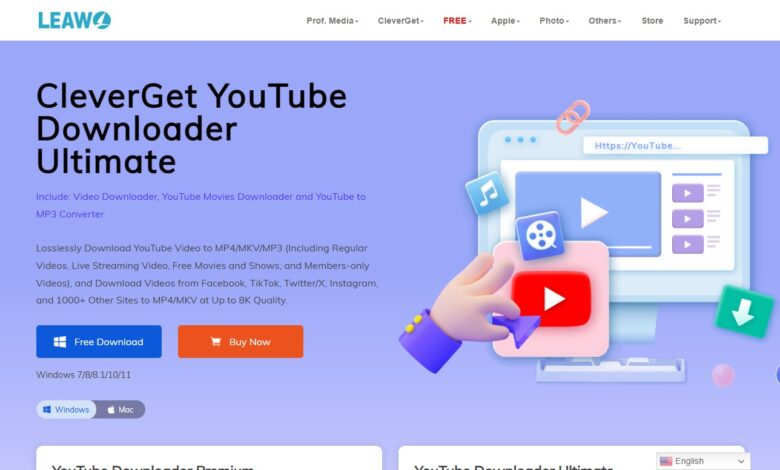
If you want the fastest, cleanest, and most reliable way to save an entire playlist, CleverGet YouTube Downloader Ultimate is the ideal solution. It supports full playlist detection, multiple resolutions, batch downloading, and high-speed processing.
Step 1: Install and Launch CleverGet YouTube Downloader Ultimate
Download and install the latest version of the software on your computer. Open the program and familiarize yourself with the clean interface.
Step 2: Copy the YouTube Playlist URL
On YouTube:
- Open the playlist you want to download
- Copy the full playlist URL from your browser’s address bar
Make sure the entire playlist link is selected—not just a single video.
Step 3: Paste the Playlist URL into CleverGet
Simply paste the link into the address bar within CleverGet. The built-in browser will automatically analyze the playlist.
Step 4: Select “Playlist” Instead of “Single Video”
CleverGet detects whether the link is a single video or an entire playlist.
- Choose Download Playlist
- The program will then display a full list of included videos
You can choose to download:
- The entire playlist, or
- Specific videos only
Step 5: Choose Quality, Format, and Audio Options
CleverGet allows you to pick:
- Video resolution (720p/1080p/4K/8K depending on availability)
- Format (MP4, WEBM, etc.)
- Audio-only options (MP3/M4A if needed)
Select the settings that best fit your needs.
Step 6: Start the Download
Click the Download button. CleverGet will begin processing each video in the playlist one by one using high-speed, optimized connections.
Once complete, you will find all downloaded files neatly saved in your chosen output folder.
This is the most efficient solution for how to download YouTube playlist content with guaranteed stability and full playlist recognition.
Part 3: Other Ways to Download Playlists (and Their Drawbacks)
Although CleverGet offers the most complete features, there are other methods that users sometimes consider. Each method comes with significant limitations.
A. Web-Based Playlist Downloaders
Many websites claim to offer easy Youtube playlist download functionality, but most are restricted by:
- Playlist size limits (often 20 videos or fewer)
- Slow processing
- Inability to detect HD/4K resolutions
- Pop-up ads and potential security risks
- Frequent shutdowns due to YouTube policy changes
While convenient, they are not reliable for long-term use or large playlists.
B. Browser Add-ons
Extensions for Chrome or Firefox may seem convenient, but they come with issues:
- Many cannot process full playlists
- Often blocked by YouTube
- Quality is frequently limited
- May require external apps to work
- Security risks from third-party developers
These tools are generally better for single-video downloads rather than full playlists.
C. YouTube Premium
YouTube Premium allows temporary offline downloads on mobile devices. However:
- Videos remain inside the YouTube app
- You cannot export or move files to your computer
- Offline access expires when subscription ends
- Playlist downloads are sometimes incomplete
This is not a true download playlist from YouTube method—it’s only for temporary offline viewing.
D. Screen Recording Tools (e.g., CleverGet Recorder)
Screen recorders such as Leawo CleverGet Recorder allow you to capture YouTube videos manually by playing them in real-time. This method is helpful when:
- A playlist has protected content
- No downloader can access a certain video
- You need custom sections or clips
However, drawbacks include:
- Real-time recording (slow)
- Not ideal for large playlists
- Requires manual setup
- Lower efficiency compared to dedicated downloaders
Screen recording is best used as a last resort, not for full playlist batch processing.
Conclusion
Learning how to download YouTube playlist videos can be incredibly useful for offline study sessions, travel, entertainment, or creating personal video collections. However, it’s important to follow YouTube’s terms, respect copyright rules, and use only safe, reliable tools.
While web-based services, browser extensions, screen recorders, and YouTube Premium each have their uses, none offer the same stability, quality, and convenience as CleverGet YouTube Downloader Ultimate. It remains the most complete and efficient solution for anyone wanting to download playlist from YouTube quickly and safely.
Whether you’re downloading a music playlist, a tutorial series, or a collection of educational videos, having the right tool ensures smooth, high-quality offline access whenever you need it.


